
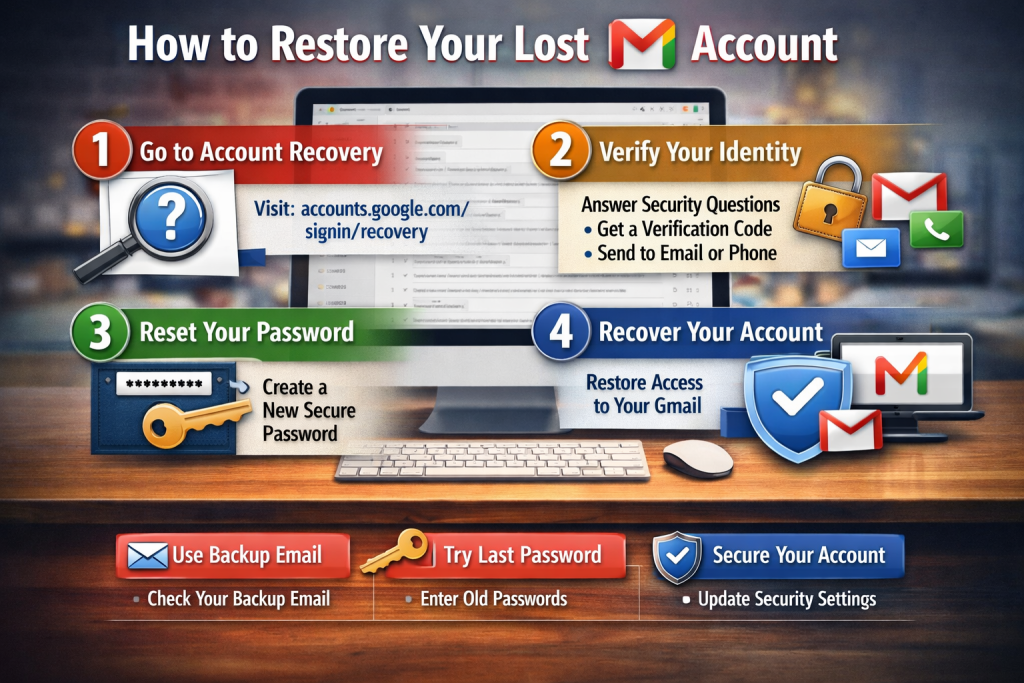
Being locked out of your Gmail account can be extremely frustrating. Since your Gmail is linked to your Google Account, losing access means losing photos documents and contacts. Fortunately, Google offers an automated security system to help you reclaim your space. This comprehensive guide outlines the exact steps to efficiently and securely recover your Gmail account.
Confirm Your Identity: Before entering your email, set yourself up for success. Google’s automated system closely examines environmental signals to verify your identity as the rightful owner rather than a hacker attempting unauthorised access.
Use a Familiar Device: Attempt recovery using a computer, smartphone or tablet you’ve frequently used to log into this specific account.
Use Your Regular Browser: Stick to your usual browser (like Chrome or Safari) rather than using incognito mode.
Connect to Familiar Wi-Fi: Initiate the recovery from a physical location where you regularly log in, such as your home network or workplace.
The Official Recovery Page: Avoid third-party websites or services claiming to recover your account for a fee. Google never uses external support agencies.
Go Directly to the Official Google Account Recovery Gateway: Visit g.co/recover.
Guidebooks – Google: Enter your full Gmail address and click Next.
If You Can’t Remember Your Email Address: Click “Forgot email?” on the login screen. You’ll be asked to provide your phone number or the backup recovery email address attached to the account along with the exact legal name listed on your profile.
Google Workspace Help:
Beat the Security Challenges: Google will prompt you with a series of tailored security questions. These questions dynamically adjust based on the security layers you’ve previously established.
What if I Forgot My Password?
When prompted for a password, use the most recent one you can confidently remember. If you can’t recall your last password, choose an older one you used before. If you’re completely blank, make a logical guess. Google won’t penalise or lock you out for incorrect guesses during this process.
If you can’t remember any passwords, click “Try another way.” Google will cycle through alternative verification methods:
– Sending a unique verification code to your designated recovery email or phone number.
– Mailmeteor
– Displaying a push prompt directly on your smartphone where you’re currently signed in.
– Guidebooks – Google
– Requesting a rolling multi-factor code from an application like Google Authenticator.
– Guidebooks – Google
If a specific challenge asks for an old phone number or an expired backup email you no longer have, don’t give up. Simply click “Try another way” again to move to the next security checkpoint.
Once Google confirms your identity, you’ll be prompted to change your password immediately.
Create a Unique Password:
– Don’t reuse a password you’ve used on this Google account or any other website.
– Mix characters: Use a strong combination of uppercase letters, lowercase letters, numbers, and symbols.
Note on Delays: If you don’t have enough recovery information, Google might ask for an alternate, accessible contact email. In complex cases, Google’s automated security team might flag the request for a security hold. This review window can take anywhere from 24 to 72 hours to ensure an attacker isn’t trying to force a takeover.
Protect Future Access:
– After regaining access, spend two minutes updating your security settings to prevent future lockouts.
– Go to your Google Account settings and ensure you have an active, up-to-date recovery phone number and secondary recovery email.
– If you use 2-Step Verification, generate and print out a set of physical Backup Codes to keep in a secure place.


