
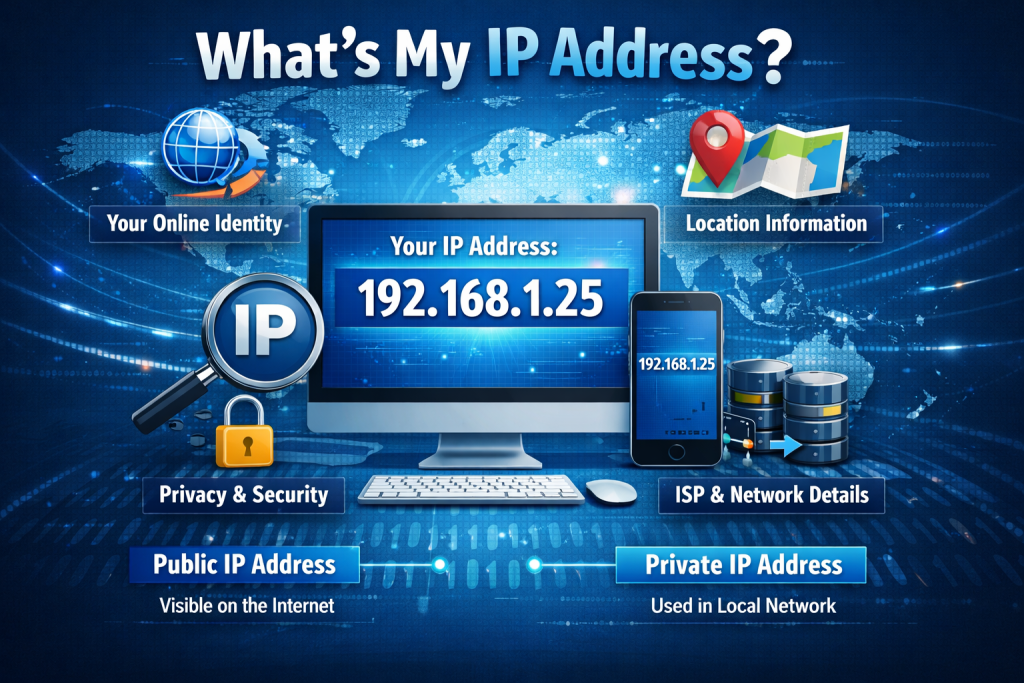
Think of your IP address as your device’s digital return address. Without it, the internet can’t deliver data to your specific screen. This comprehensive 600-word guide explains what an IP address is, how to find yours and why it matters.
What Exactly is an IP Address?
An IP address, or Internet Protocol address, is a unique string of numbers assigned to any device connected to a computer network. This includes smartphones laptops and smart TVs. Currently, the internet uses two versions of IP addresses:
IPv4: The traditional format, consisting of four sets of numbers separated by periods (e.g., 192.168.1.1). However, the rapid growth of the internet eventually exhausted the available unique 32-bit combinations.
IPv6: The modern solution. Written in hexadecimal and separated by colons (e.g., 2001:db8:0:1234:0:567:8:1), IPv6 provides virtually an infinite number of unique addresses to accommodate billions of smart devices.
Public vs. Private IP Addresses
Your device manages two types of IP addresses simultaneously:
Your Public IP Address: This is the address assigned to your home network by your Internet Service Provider (ISP). It’s the external face of your network, visible to websites you visit and servers you connect to. When you ask “What is my IP?”, this is usually the number you’re looking for.
Your private IP address is the internal address assigned to your device by your local Wi-Fi router. It enables your phone, laptop and printer to communicate within your home without confusing each other’s data streams. It’s invisible to the outside world.
Finding your public IP address is quick and easy. Open your web browser and search for “What is my IP?” Google, Bing or specialised sites like whatsmyip.org will display your public IP address at the top of the page.
To find your private IP address for troubleshooting or networking, simply look in your operating system’s settings.
On Windows:
Open the Start menu and type “cmd” to open the Command Prompt.
Type “ipconfig” and press Enter.
Locate the line that says “IPv4 Address” (it usually starts with 192.168.x.x).
On macOS:
Click the Apple icon in the top left corner and select System Settings.
Click “Network” in the sidebar, select your active connection (Wi-Fi or Ethernet) and click “Details”.
Your local IP address will be displayed there.
Why should you care about your IP address?
Your public IP address reveals subtle clues about your online footprint, particularly your general geographic location (like your city, postcode or ISP). Websites use this information to serve you localised content, target ads or block access through “geo-blocking”. To protect your digital privacy, bypass location restrictions or secure your data on public Wi-Fi, consider using a VPN (Virtual Private Network). A VPN routes your internet traffic through a remote server, masking your real public IP address with a different one, keeping your digital footprint hidden.


